 Claude to PDF
Claude chat to .docx
Export a Claude Chat to Word (.docx)
Install the Claude to PDF extension, open the chat in claude.ai and click Word — the whole conversation downloads as an editable .docx with headings, tables, code blocks and equations preserved. No share link needed.

- Private chats — no share link needed
- PDF, Word (.docx), Google Docs and Markdown
- Full chat, single response, selected messages or artifact
- Chrome, Edge, Brave and Arc
By the Claude to PDF team · Updated · How we research
How to export a Claude chat to Word
- Install the extension. Add the Claude to PDF extension from the Chrome Web Store (Chrome, Edge, Brave or Arc on desktop), then refresh any open claude.ai tab.
- Open the conversation. It can be any chat in your account — private chats work, because nothing is shared.
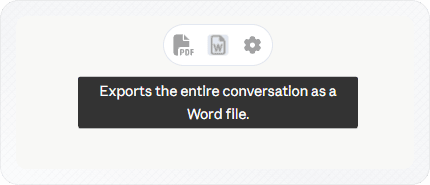
- Click Word. The Word button sits with the other export buttons at the top right of the conversation.
- Open the .docx. It lands in your Downloads folder, ready to edit.
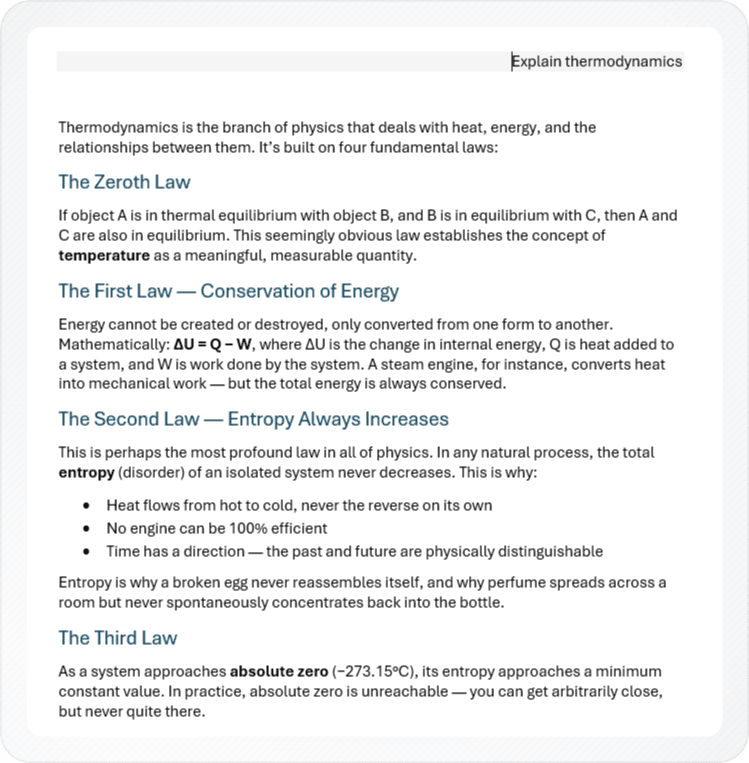
What you get in the Word document
The file is a normal, editable Word document — not a PDF, image or text dump wrapped in a .docx. In practice that means:
- Headings stay headings. Claude's section titles come through as styled headings, so a long answer keeps its structure instead of turning into one wall of text.
- Word tables. Comparison tables stay as real Word tables you can resize, restyle or sort, rather than rows of
|characters. (Pasting by hand instead? See copying a table from Claude to Word.) - Editable equations. Math in Claude's answers is written as native Word equations — the same kind Word's Alt+= creates. Click one and you are in the equation editor, which matters for coursework, engineering notes or anything you will keep revising. For one-off formulas, copying equations from Claude to Word explains the LaTeX route.
- Code blocks in a monospace font, separated from the surrounding prose.
- Lists, bold and italic as proper Word formatting.
- Charts, graphs and diagrams as images, the way they look in Claude — plus quizzes, recipe and step cards rebuilt as formatted sections.
A whole-conversation export contains your prompts and Claude's replies in order. If you only want the answers — say, for a report you are handing to someone — open the extension's settings (gear icon next to the export buttons) and, under Include Only Claude Responses in, turn on Entire conversation downloads.
Working with the .docx in Word
The file is named after the conversation's title in Claude and opens like any other document. A few things make editing it faster:
- Use the Navigation pane (View → Navigation Pane). Because Claude's section titles arrive as real heading styles, the pane lists every section, so you can jump around a long chat, reorder sections by dragging them, or delete an entire answer in one go.
- Restyle in one move. The document uses Word's built-in heading and body styles, so applying one of Word's design sets (Design tab) or your own template's styles restyles the whole file at once — no manual reformatting.
- Edit equations in place. Double-click any formula to open Word's equation editor; the math is a native equation object, not an image.
- Tables behave like tables. Sort a column, add a total row, or paste a table from the document into Excel with its cells intact.
- Strip the conversation framing. If you exported the full chat for a report, delete the prompts (or re-export with Entire conversation downloads turned on under Include Only Claude Responses in), rename the first heading to the report's actual title, and you have a clean draft.
If the document is going to someone else, run Word's spelling check and read Claude's answer once more before sending: an export is a faithful copy, so any mistake Claude made is in the file too.
Export only the part you need
Long chats often contain one answer worth keeping, and the Word button works at several levels:
| What you want in the .docx | Where to click |
|---|---|
| The whole conversation | Word at the top right of the chat |
| One Claude answer (without your prompt, by default) | Word at the bottom of that response — more in saving a single Claude response |
| A handful of messages | Enable Select Messages Checkbox under Choose Export Buttons (off by default), tick the checkbox in the toolbar, tick the messages, then Word at the top right |
| A document or report Claude built as an artifact | Open the artifact, maximize it, then Word at the top right |
The artifact behavior trips people up: the top-right buttons follow what is on screen. With a maximized artifact they export only the artifact; with it closed they export the entire chat. A Docs template artifact can also go straight to Word from Claude's own Export menu — the artifact export guide covers both routes.
If the Word button is missing, check the extension settings under Choose Export Buttons, confirm Word is ticked, and refresh the Claude tab.
Copy-paste into Word vs the extension
You can get text into Word without installing anything: click Claude's copy button under a response and paste. For a short answer that is mostly paragraphs, that is fine. Where it falls down:
- One response at a time. A long conversation means dozens of copy-paste rounds, and your prompts are not included.
- Uneven formatting. How headings, tables and code blocks paste depends on the version of Word and the clipboard format, and they often need fixing by hand.
- Equations. Math may not arrive as editable Word equations, which matters if you plan to change a formula later.
Selecting the whole page with Ctrl+A picks up interface text around the chat as well, which you then have to delete.
Use copy-paste for a quick paragraph. Use the extension when the document matters — a report, a proposal, study notes with formulas — or when you export often.
Word, Google Docs or PDF?
Choose Word when you will keep editing offline, use tracked changes, or drop the content into an existing template. If your team works in Drive and wants to comment together, export to Google Docs instead. If the document is final and just needs to be read, printed or archived, a PDF is safer — try the free Claude to PDF converter. For notes apps and Git repos, Markdown is the lighter option.
One naming note: searches for "Claude to Word" often mean Claude for Word, Anthropic's add-in that works inside Microsoft Word itself on paid plans. That is for working on documents in Word with Claude's help; this page is about getting an existing Claude conversation out into a .docx. For every format, button and setting in one place, see the full extension guide.
Frequently asked questions
Does Claude have a built-in export to Word button?
Can I ask Claude to write a Word document instead?
Is exporting Claude to Word free?
How do I export Claude data to Microsoft Word?
Related
- Copy a Claude table to WordWhy pasted tables break, and three fixes.
- Copy Claude equations to WordWord's LaTeX input, step by step.
- Claude for Word add-inClaude inside Word — not an export tool.
- Claude to PDF extensionPrivate chats, artifacts and charts, no share link.
- Claude to Google DocsStraight into your Drive, ready for comments.