 Claude to PDF
Claude chat to .md
Save a Claude Chat as Markdown
For one answer, Claude's own copy button already gives you Markdown. For a whole conversation, a single response as a file, or an artifact, the Claude to PDF extension saves a .md file in one click — ready for Obsidian, Notion, GitHub or any text editor.

- Private chats — no share link needed
- PDF, Word (.docx), Google Docs and Markdown
- Full chat, single response, selected messages or artifact
- Chrome, Edge, Brave and Arc
By the Claude to PDF team · Updated · How we research
How to export a Claude chat to Markdown
Pick the route that matches how much you need:
- One response: click the copy button under Claude's reply and paste it anywhere that accepts Markdown.
- A whole chat, one response or an artifact: turn on the Markdown button in the extension settings, then click it at the top right of the chat, under a single response, or with an artifact maximized, to download a .md file.
- Everything you've ever sent: use Claude's own data export, which gives you JSON rather than Markdown.
One response — no install needed
- Hover under the Claude answer you want and click the copy button.
- Paste into your Markdown editor, note or file. Headings, lists and code fences come with it.
A whole conversation, one response or an artifact — with the extension
- Add the Claude to PDF extension to Chrome, Edge, Brave or Arc on desktop and refresh claude.ai.
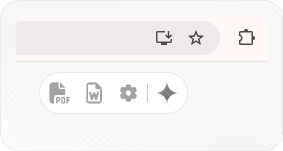
- Click the gear icon next to the export buttons, tick Markdown under Choose Export Buttons (it is off by default), and refresh again.
- Open the chat and click Markdown at the top right for the whole conversation, or under one response for just that answer. The .md file downloads to your computer.
Copy button or .md file — which one?
| You want to… | Use |
|---|---|
| Drop one answer into a note or README | Claude's copy button |
| Keep the whole chat, prompts included | Extension, top-right Markdown |
| Save only Claude's side of a long chat | Extension with Entire conversation downloads turned on under Include Only Claude Responses in |
| Keep a few key messages from a long thread | Extension selection mode as PDF or Word (turn on Select Messages Checkbox under Choose Export Buttons), or copy each response |
| Save a document or code Claude built as an artifact | Claude's own Export for Docs artifacts, or maximize any artifact and click Markdown |
| Back up every conversation at once | Claude's official data export (JSON) |
The copy button is underrated: if you only ever need individual answers, you may not need anything else. The extension earns its place when you copy the same chat piece by piece, or when you want your prompts in the record too.
What the exported .md file contains
The extension names the file after the conversation's title and writes the chat as one Markdown document:
- Each message in order, your prompts and Claude's replies alternating, unless you exported with responses only.
- Claude's formatting as Markdown syntax, not flattened text:
##headings,-and1.lists, fenced code blocks with their language, pipe tables,**bold**and*italic*, and inline code in backticks. - Math as Claude wrote it, so LaTeX-style notation stays intact for editors that render it.
- Images and charts embedded. Pictures in the chat and charts or diagrams Claude drew are written into the file as embedded images, so the .md is self-contained — but that also makes a visual-heavy chat a large file. If you only need the text, a chat without images stays small.
Open the file in any editor to check it before filing it. If a heading level looks off for your notes (Claude often starts at ##), a find-and-replace on the hashes fixes the whole file at once.
Using the file in a notes system that grows
A folder of exported chats becomes useful when you can find things later. Three habits that pay off:
- Rename as you export. Claude's auto-generated chat titles are vague ("Quick question"). Rename the chat in Claude before exporting, or rename the file to
YYYY-MM-DD topic.mdso it sorts by date. - Add front matter if your app supports it. Obsidian and most static-site tools read a block at the top of the file — a date, tags and the source — and let you filter on it.
- Link, don't duplicate. Keep one exported file per conversation and link to it from your project notes rather than pasting the same answer into several places; when you re-export after the chat continues, only the one file changes.
Why Markdown for Claude chats
Markdown is plain text with light symbols for structure. That makes it the most portable format you can keep a Claude conversation in:
- It opens anywhere. Any text editor on any system reads a .md file, now and in ten years.
- It is searchable. Your notes app, your editor or a simple file search finds text inside it.
- It works with version control. Commit it to Git and every later edit shows as a readable diff.
- It converts easily. The same file can become HTML, a Word document or a PDF with common tools.
- It is good context. A saved chat in Markdown can be pasted back into Claude or another tool later without losing structure.
Here is what a short Claude answer looks like as Markdown:
## Setting up the project

1. Install the dependencies:

   ```bash
   npm install
   ```

2. Copy `.env.example` to `.env` and add your keys.

| Command | What it does |
|---|---|
| `npm run dev` | Starts the local server |
| `npm test` | Runs the test suite |
Headings start with ##, code sits in fences with its language, and tables are pipes and dashes — all of which the apps below render properly.
Where to put your Claude Markdown
- Obsidian: move the .md file into your vault folder. It appears as a note you can link, tag and search.
- Notion: paste a copied response into a page, or use Notion's import option for Markdown files to bring in a full exported chat.
- GitHub or GitLab: commit the file to a repo, or paste an answer into a README, issue or pull request description — Markdown is their native format.
- VS Code or any editor: open the file directly; most editors have a Markdown preview.
- Static sites and docs tools: many take .md files as their content source.
Markdown is also the easiest format for handing a conversation to another assistant — see moving between ChatGPT and Claude.
When Markdown is the wrong choice
Markdown is for people who will keep working with the text. If you need a document to hand to a client, a manager or a teacher, send something that looks finished: export the chat to Word for an editable .docx, send it to Google Docs to review it with others, or use the free Claude to PDF converter for a read-only copy. To see every button and setting the extension offers, read the extension guide.
Frequently asked questions
Isn't the official Claude data export already a text format?
Can I save a Claude artifact as Markdown?
How do I copy an entire Claude chat?
Related
- Move between ChatGPT and ClaudeMemory moves; chats travel as files.
- Claude to PDF extensionPrivate chats, artifacts and charts, no share link.
- Claude chat to WordNative Word equations and real Word tables.
- Claude to Google DocsStraight into your Drive, ready for comments.
- Export Claude chat historyThe official JSON export: steps, limits, 24-hour link.
- Claude response to PDFOne answer, or just the messages you tick.