 Claude to PDF
How to Download Claude Artifacts, Share Them or Publish Them
To download Claude artifacts made from a Docs, Slides or Design template, open the artifact and click Export — each template offers its own file formats. Older "legacy" artifacts keep their copy and download controls at the top of the panel. Sharing is separate and lives behind the Share button.
By the Claude to PDF team · Updated · How we research
How to download Claude artifacts
For an artifact you made recently, from a template:
-
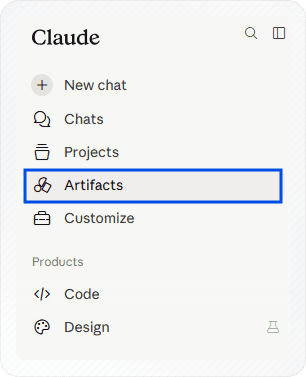
Open the Artifacts tab. On claude.ai or in Claude Desktop, click Artifacts in the left sidebar. New artifacts are all collected here, not only inside the chat that produced them.
-
Open the artifact you want to save.
-
Click Export. Choose a format. What's offered depends on the template — see the table below.
-
Save the file and open it to check the layout came through as expected.
For an older artifact:
- Open the conversation that created it and click the artifact to open the panel.
- Use the controls at the top of the panel to view the code, copy the content, or download it.
If neither route gives you the format you need (a Word copy of a legacy document, say), the extension route near the end of this page covers it.
What changed for Claude artifacts on September 16, 2026?
Claude rebuilt artifacts on September 16, 2026. New artifacts are saved in the Artifacts tab, can start from Docs, Slides or Design templates (a beta on paid plans), export through an Export button, and share with access levels. Artifacts created in chats before that date became "legacy": they still open and download, but new ones can't be made that way.
In practice that means two sets of controls, depending on the artifact's age:
| New artifacts (since Sept 16, 2026) | Legacy artifacts (made in a chat before) | |
|---|---|---|
| Where they live | Artifacts tab in the sidebar | Inside the original conversation |
| Download | Export button (template artifacts) | View code, copy and download controls at the top of the panel |
| Share | Share → Who has access, with access levels | Publish to a public link (Free, Pro, Max) |
| Can you make more? | Yes | No — new artifacts use the new system |
Export formats for each artifact type
Template artifacts each export to a different set of formats:
| Template | Export formats |
|---|---|
| Docs | Word, PDF, Markdown, Google Docs |
| Slides | PowerPoint, PDF |
| Design | .zip, PDF, PowerPoint, standalone HTML |
A few practical notes on choosing:
- Docs → Word if someone will keep editing; PDF if it's final; Markdown for a wiki or repository; Google Docs for a draft a team will comment on.
- Slides → PowerPoint keeps the deck editable for presenting and tweaking; PDF is the safe choice for sending a deck to people who only need to read it.
- Design → standalone HTML is the answer to "Claude artifact to HTML": one file you can open in a browser or host. Choose .zip when you want the files as an archive instead.
If the artifact you're looking at has no Export button, it's either a legacy artifact (use the panel controls) or not a template artifact. Asking Claude in the chat to produce the content as a file — a .docx, .pdf, .xlsx or .pptx — works through file creation; for spreadsheets specifically, see getting Claude's data into Excel.
How to share a Claude artifact
Artifacts start private. To let someone else open one:
- Open the artifact on the web or in Claude Desktop.
- Click Share.
- Under Who has access, choose who can open it (options depend on your plan — see below).
- Set the access level: Can view, Commenter or Can edit.
- Copy the link or send the email invite.
What your plan allows:
| Plan | Who can have access |
|---|---|
| Pro, Max | "Only you" or "Anyone with the link", plus email invites (beta) |
| Team, Enterprise | Invited people, anyone in your organization, or anyone with the link — the last one only if an Owner allows external sharing |
The access levels matter for downloading, too. A Commenter can add comments and download the files the artifact offers, so you can hand someone the export without giving them edit rights. Can edit lets them change the artifact itself. Official details are in Claude's article on publishing and sharing artifacts.
Sharing an artifact on its own leaves the conversation private. If you want the whole discussion out there, share the chat instead — a public chat link converts to PDF if you need a copy.
Legacy artifacts: download and publish
Artifacts created in a chat before September 16, 2026 keep the controls they had. On Free, Pro and Max plans, you can still publish one to a public web page:
- Open the conversation and click the artifact to open it in the panel.
- Check that the panel shows the version you want to publish.
- Click Publish at the top of the artifact.
- In the dialog, click Publish & copy link.
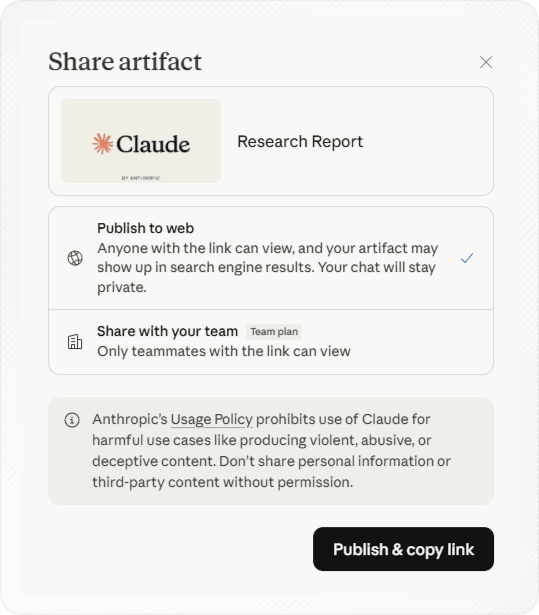
The legacy dialog spells out the trade-offs, and they're worth reading before you click: anyone with the link can view the artifact, it may show up in search engine results, and your chat stays private.
After publishing, the same dialog offers Copy link, Get embed code for placing the artifact on a website, and Unpublish. Unpublishing takes the page down and can't be reversed, so a legacy artifact can't simply be republished afterwards. Only unpublish when you're sure.
When to use the extension instead
Claude's own controls are the first stop. The Claude to PDF extension is useful when:
- the artifact is legacy and you want a formatted Word or PDF file rather than its code or raw content;
- the artifact isn't a template artifact, so there's no Export button;
- you want every artifact saved the same way as the rest of your chats.
Open the artifact, maximize it to full view, and click PDF or Word; the file contains only the artifact. The full steps, and which artifacts make good PDFs, are in saving a Claude artifact as a PDF or Word file. If the artifacts belong to a project you're archiving, exporting a Claude project covers its chats, files and instructions too.
Troubleshooting
- No Export button. Legacy or non-template artifact — use the panel controls or the extension.
- "Anyone with the link" is missing on Team or Enterprise. An Owner hasn't allowed external sharing; share inside your organization or ask them.
- No Publish button on a new artifact. Publishing is a legacy feature; use Share with "Anyone with the link" instead.
- Can't change sharing on your phone. Expected — switch to the web app or Claude Desktop.
- Interactive artifact looks wrong as a PDF. PDFs are static. If it's a Design artifact, the standalone HTML export opens in any browser instead.
Frequently asked questions
Where are my Claude artifacts saved?
Can I download a Claude artifact as HTML?
Can I download or share artifacts from the Claude mobile app?
Why can't I create new artifacts?
Does sharing a chat share its artifacts?
Related
- Claude artifact to PDFClaude's Export button first; the extension for everything else.
- Export a Claude projectChats, knowledge files and instructions, one by one.
- Can Claude create a PDF?Generating a document vs saving your chat.
- Claude to PDF extensionPrivate chats, artifacts and charts, no share link.
- Claude to ExcelPaste, CSV, an .xlsx from Claude, or the add-in.