 Claude to PDF
Chrome, Edge, Brave and Arc
Claude to PDF Extension: Export Any Chat Without a Share Link
The Claude to PDF extension puts PDF, Word, Google Docs and Markdown buttons inside claude.ai, so you can export a private conversation, one answer, a handful of messages or an artifact without ever creating a share link.

- Private chats — no share link needed
- PDF, Word (.docx), Google Docs and Markdown
- Full chat, single response, selected messages or artifact
- Chrome, Edge, Brave and Arc
By the Claude to PDF team · Updated · How we research
How to install the Claude to PDF extension and export your first chat
- Install it. Open the Claude to PDF, Word and Google Docs listing in the Chrome Web Store (the button above goes straight there) and click Add to Chrome, then confirm.
- Refresh claude.ai. Tabs that were open before the install won't show the buttons until you reload them.
- Open a conversation. Any chat in your sidebar works — shared or not.
- Click a format. PDF and Word buttons sit in the top-right corner of the conversation, and the file lands in your Downloads folder. Google Docs and Markdown are off until you enable them in the settings (below); a Google Docs export opens as a new document in your Drive.
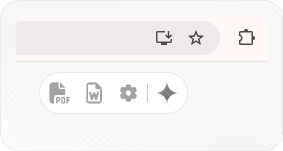
What the buttons export, depending on where you click
The formats you've switched on work at every level; only the amount of chat in the file changes.
| What you want | Where to click | What ends up in the file |
|---|---|---|
| The whole conversation | Format buttons, top-right of the chat | Every prompt and reply, in order |
| One answer | Buttons at the bottom of that Claude response | Just Claude's answer (your prompt is left out by default) — see saving a single Claude response |
| Part of a long chat | Select Messages checkbox (top-right toolbar, once enabled in settings), then tick messages | Only the ticked messages, in chat order |
| An artifact | Open the artifact, maximize it, then the top-right buttons | Only the artifact's content — see exporting Claude artifacts |
A Research report arrives as a single Claude response, so the buttons under it save the report on its own — saving a Claude research report covers keeping its citations usable.
One behavior catches people out: the top-right buttons follow what's on screen. With a maximized artifact they export the artifact; close it and the same buttons export the entire conversation. Selection mode isn't available while an artifact is open.
For the newer template artifacts (Docs, Slides, Design), Claude also has its own Export button in the artifact — Docs to Word, PDF, Markdown or Google Docs; Slides to PowerPoint or PDF — which is often the simplest route. The extension works on any artifact, new or legacy — handy for legacy artifacts (which have no Export button), for Word from a Slides or Design artifact, and for exporting every artifact the same way.
Exporting a private Claude chat without a share link
A share-link converter, ours included, can only read a public share page. That route has real costs:
- Claude's default share is invite-only. The Share dialog now invites specific people by email, and those links only open for the invited, signed-in account — a converter can't read them.
- Team and Enterprise chats can't be made public at all; sharing stays inside the organization.
- A public link is public. Anyone who gets it can copy or repost the snapshot, so it's a poor fit for client work, health questions or anything confidential.
- It's a snapshot. Messages added after sharing are missing until you update the shared chat.
The extension skips all of that. It reads the conversation you're looking at in your own logged-in tab, so the chat stays private in Claude — no share link is created and nothing is published. Claude's own rules for public links are in the Help Center article on public links; if you do want a link, the guide to converting a Claude share link to PDF explains which links work.
If a share link you were sent won't open or convert, the share-link troubleshooting guide walks through each cause.
Choosing a format
| Format | Pick it when | More detail |
|---|---|---|
| You need a fixed, printable record to send or file | Claude to PDF converter for public links | |
| Word (.docx) | You'll edit the text, or need equations that stay editable | Export a Claude chat to Word |
| Google Docs | You want to comment and collaborate in Drive | Claude to Google Docs |
| Markdown (.md) | It's going into Notion, Obsidian, GitHub or another AI tool | Claude to Markdown |
All four keep the structure Claude wrote: headings, bulleted and numbered lists, code blocks, tables, and bold or italic text. In PDF and Word, math comes through as equations — in Word they are real equation objects you can edit.
Does the PDF include charts, graphs and diagrams?
Yes. PDF, Word and Google Docs exports keep the visual parts of Claude's answers instead of dropping them or leaving raw code behind. Charts and graphs Claude draws come through as images in Claude's own colors, and other on-screen elements are rebuilt as readable sections of the document:
- Charts and graphs — rendered as images, the way they look in the chat
- Diagrams and visual widgets — flowcharts, illustrations and mockups, as images
- Quizzes — each question with its options, then the correct answer and explanation, like a study guide
- Cards — recipes (with their images), step-by-step guides, option and comparison cards, places and itineraries, as formatted sections
- Files and drafts Claude created — their content, not just a filename
- Behind-the-scenes tool activity — left out, so no raw code or connector data clutters the file
Interactive elements become static in a document: you get what was on screen, not the buttons. The share-link web converter only captures the text of Claude's replies, so use the extension for chats with charts or other visuals.
Settings worth changing
Click the gear icon at the top right to open the settings.
- Include Only Claude Responses in has two toggles. Entire conversation downloads drops your prompts from whole-chat exports — handy when the file is a report for someone else. Single response downloads is on by default, so a single-response export contains only Claude's answer.
- Choose Export Buttons. Out of the box only PDF and Word appear. Switch on Google Docs, Markdown and Select Messages Checkbox (message selection) here, or hide a format you never use — at least one has to stay visible.
Browsers, devices and plans
- Supported: Chrome, Edge, Brave and Arc on desktop.
- Not yet supported: Firefox and Safari, phones and tablets, and Claude's desktop and mobile apps. In Firefox or Safari on a computer, use a public link with the web converter; on a phone, copy individual answers with Claude's own Copy button.
- Plans: a free plan with a monthly export allowance, and a paid plan for unlimited exports.
Switching between Claude and ChatGPT? A Markdown or PDF export is the practical way to carry a conversation to another assistant.
Privacy
Exporting doesn't share the chat in Claude: no link, no snapshot, no change to its privacy settings. The extension reads the chat in your own browser session on claude.ai. Markdown files are created in your browser; PDF, Word and Google Docs exports are built by our conversion service, which returns the file and keeps no copy or logs of your content. Google Docs exports go into your own Google Drive. Details are in the privacy policy.
If something doesn't work
- No buttons on claude.ai: reload the tab. Still nothing? Open
chrome://extensionsand confirm the extension is enabled. - Google Docs, Markdown or the Select Messages checkbox is missing: they're off by default. Enable them under Choose Export Buttons, and refresh claude.ai if they don't appear straight away.
- The artifact exported as the whole chat: the artifact wasn't maximized. Artifact export only works in full view.
- Nothing downloaded: check that your browser isn't blocking downloads from claude.ai.
- Google Docs didn't open: sign in to Google in the same browser profile and try again.
- Your company blocks extensions: use a route that needs nothing installed — the share-link converter if the chat can be public, or Claude's own data export for a full backup.
If you want every conversation at once rather than one at a time, the extension isn't the tool: Claude's own data export is, explained in exporting your Claude chat history. To combine the two into a routine — a JSON archive of everything plus readable copies of the chats that matter — see backing up your Claude chats.
Frequently asked questions
Is the Claude to PDF extension free?
Does it work in the Claude desktop app or on my phone?
How do I download a Claude chat as a file?
Related
- Claude artifact to PDFClaude's Export button first; the extension for everything else.
- Claude response to PDFOne answer, or just the messages you tick.
- Claude chat to WordNative Word equations and real Word tables.
- Claude to Google DocsStraight into your Drive, ready for comments.
- Claude to MarkdownFor Obsidian, Notion, GitHub or another AI.