 Claude to PDF
Claude Share Link Not Working? Find the Cause and Fix It
When a Claude share link is not working, it's usually because the chat was shared with specific people instead of as a public link, the viewer is signed in to the wrong account, or sharing was turned off. Here's how to tell which one and fix it.
By the Claude to PDF team · Updated · How we research
Quick diagnosis: the private-window test
Start here, because one test narrows a Claude share link not working down to a single cause:
- Copy the link.
- Open a private or incognito window, where you're not signed in to anything.
- Paste the link and see what happens.
| What you see | What it means | Jump to |
|---|---|---|
| The chat opens | The link is public and working | Problem is elsewhere: see wrong account or outdated snapshot |
| A sign-in page, or a message that you need access | The chat was shared with specific people, or inside a Team or Enterprise organization | Causes 1–3 |
| An error or not-found page | Sharing was turned off or the chat was deleted | Causes 4–5 |
| The chat opens but messages or files are missing | The snapshot is older than the chat, or files were never shared | Causes 6–7 |
If you're the owner, running this test yourself shows you exactly what a stranger sees.
Cause 1: the chat was shared with specific people
This is the most common reason. Claude's Share dialog now invites people by email by default, and those links only open for the invited email addresses, signed in to Claude. Anyone else, including someone the link was forwarded to, gets asked to sign in or told they don't have access.
Fix (owner): open the chat, click Share, and either add the person's email to the invite list or switch the chat to a public link that anyone can view. Public links exist on Free, Pro and Max plans.
Fix (viewer): ask the owner which email they invited, and make sure that's the address you're signed in with.
Cause 2: you're signed in to the wrong Claude account
The invite went to your work email, but your browser is signed in to your personal account, or the other way round. The link looks broken even though you were invited.
Fix: sign out of Claude, sign back in with the exact address the owner invited, then open the link again. If you use several accounts, opening the link in a separate browser profile signed in to the invited account avoids switching back and forth.
Cause 3: it's a Team or Enterprise chat
On Team and Enterprise plans, sharing is limited to people inside the organization, and public links aren't offered. A client, contractor or friend outside the workspace can't open the link no matter what the owner changes.
Fix: send a file instead. The Claude to PDF extension (see the fallback at the end of this page) exports the chat as PDF, Word, Google Docs or Markdown directly from claude.ai, so it works for workspace chats that can't get a public link, provided your organization allows browser extensions. Check your organization's rules before sending chat content outside it.
Cause 4: sharing was turned off
Owners can unshare from the chat's Share menu or from Settings → Privacy → Shared chats → Manage. Either way, the link stops working the moment it's unshared, for everyone.
Fix (owner): share the chat again. If you've shared many chats and aren't sure which is which, check the Manage list under Settings → Privacy → Shared chats.
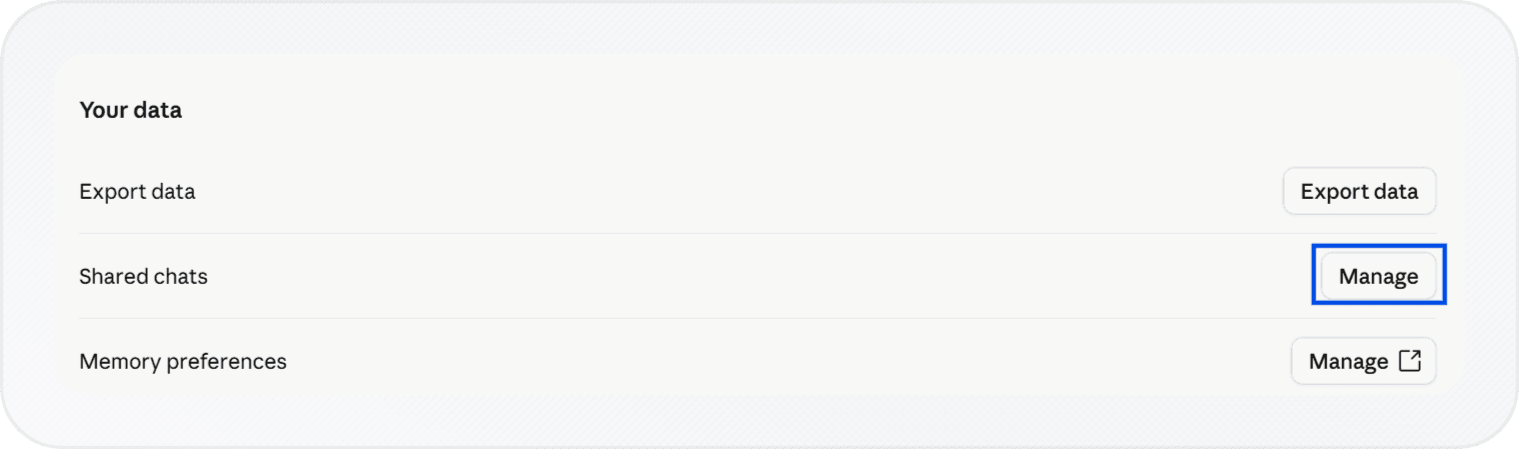
Fix (viewer): ask the owner to share it again and send you the link. If the chat matters to you, save it as a PDF as soon as it opens, since a PDF can't be switched off later.
Cause 5: the chat was deleted
Deleting a conversation also deletes its shared snapshot, so the link can't come back. There's nothing to re-share.
Fix: if anyone saved a copy (a PDF, a Word file, pasted text), that copy is now the only version. This is the strongest argument for converting important shared chats into files early.
Cause 6: the shared chat is out of date
The link works, but the answer you were told about isn't there. A share is a snapshot of the conversation at the moment it was shared. Messages added afterwards stay private.
Fix (owner): open the chat, click Share, then Update shared chat. Unsharing and sharing again also works.
Cause 7: attached files or tool data are missing
This one is by design, not a fault. Public links and email invites don't include files that were uploaded to the conversation, or the raw data Claude pulled in through connectors or MCP tools — messages and artifacts are shared, attachments aren't. (Sharing within a Team or Enterprise organization can include attached files.)
Fix: send the files separately, or have Claude summarize the relevant content in a message before sharing.
Mobile app limits
Sharing with specific people isn't in the Claude mobile app yet. If you can't find the invite option on your phone, open the chat on claude.ai in a web browser and share it from there. Anthropic's article on sharing a chat with specific people lists the current availability.
When the link works in Claude but not in the converter
The web converter on the home page reads a link the same way a stranger would, so it only succeeds with public links. Here's what each converter message means.
| Converter message | Cause | Fix |
|---|---|---|
| "Paste a public Claude share link" | The address isn't a claude.ai/share/… link. Usually it's the /chat/ address copied from the browser bar, which is private | Click Share in Claude and copy the share link instead |
| "We couldn't open that conversation…" | The link is invite-only, from a Team or Enterprise workspace, unshared, or deleted | Make it a public link, or use the extension |
| "The converter took too long to respond" or "Couldn't load that conversation" | Usually a temporary problem loading the shared page | Wait a moment and try again; if it keeps failing, run the private-window test above |
Two more things that can look like failures:
- No file appears after converting. The converter doesn't download a file directly; it opens your browser's print dialog. Choose Save as PDF as the destination and save. If you closed the dialog, click Save PDF again above the preview.
- Artifacts are missing from the PDF. The shared chat includes artifacts, but the converter lays out only the conversation. Docs, Slides and Design artifacts have Claude's own Export button; any artifact can also be exported with the extension, as covered in Claude artifact to PDF.
The fallback that doesn't need a link
Every cause above comes down to access: who can see the link and whether it still exists. If you own the chat, you can sidestep all of it: export the chat without any share link. The extension adds export buttons inside claude.ai in desktop Chrome, Edge, Brave and Arc, and works on private and invite-only chats — and on Team or Enterprise chats if your organization allows extensions — because it runs in your own signed-in session. You can export the full chat, one response or an artifact, and selected messages once message selection is switched on in its settings.
Once you have a working public link, converting a Claude link to PDF is quick, and that page also shows how to create the right kind of link.